
Why Generic Stickers Just Don't Cut It Anymore
You've seen them a thousand times—the same waving cat, the same thumbs-up emoji, the same dancing figure that everyone in your group chat uses. They work, sure, but they don't exactly capture the moment when your friend makes that face, or when your dog does something so ridiculous it deserves to be immortalized forever.
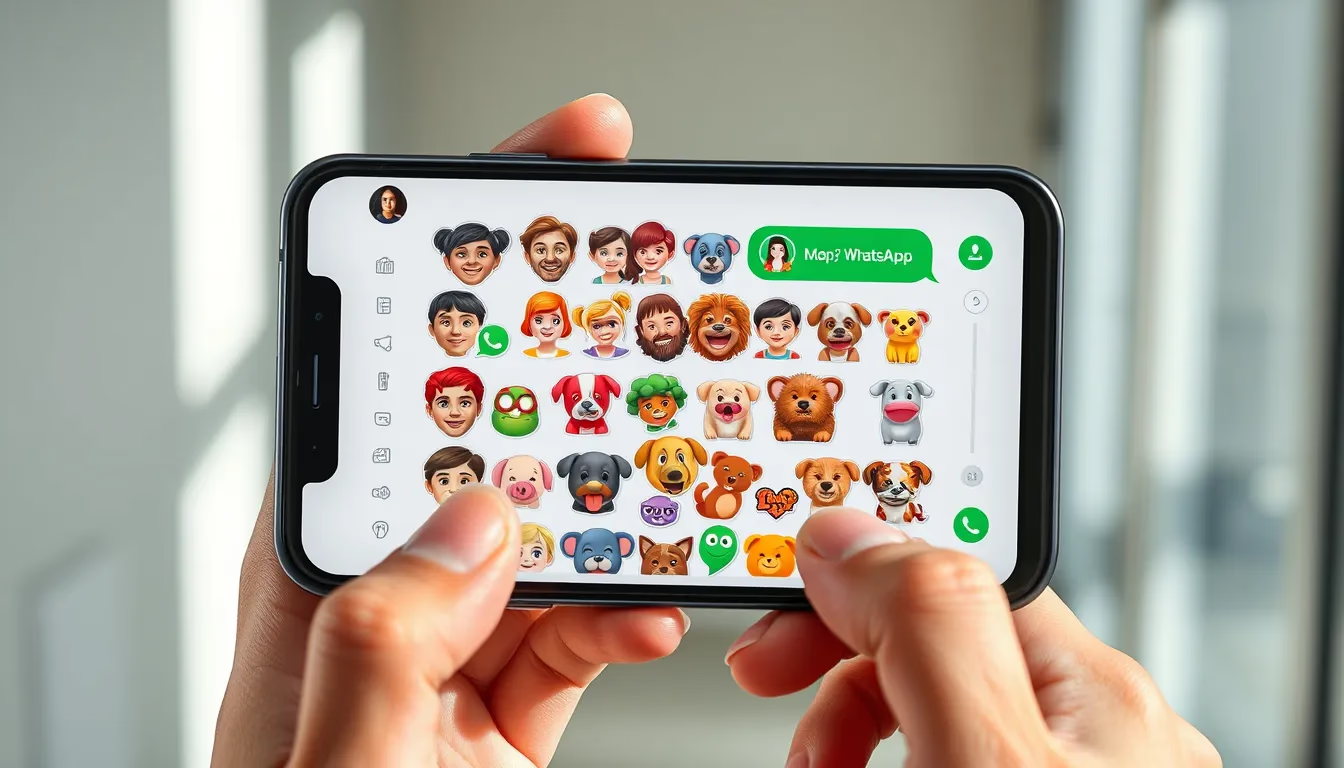
Custom WhatsApp stickers change everything. Suddenly, you can respond to messages with your own face looking skeptical, your cat mid-yawn, or that legendary photo from last year's holiday party. Inside jokes get their own visual shorthand. Your group chat develops its own visual language.
The best part? Creating your own sticker pack is significantly easier than most people assume. You don't need graphic design skills or expensive software. With the right approach and a few good photos, you can have a personalized sticker collection ready to use within an hour.
Let's walk through exactly how to make it happen.
What Makes a Good Sticker Photo
Before you start processing images, it helps to understand what actually works as a sticker. Not every photo translates well to this format—stickers are small, viewed quickly, and need to communicate instantly.
Expressions Over Poses
The most-used stickers tend to feature clear, exaggerated expressions. Think about the reactions you type most often: laughing, confused, annoyed, excited, skeptical. Photos that capture these emotions naturally become go-to responses in conversations.
Look through your camera roll for candid moments rather than posed portraits. That photo where your friend looked genuinely shocked? Perfect. The carefully composed selfie with ideal lighting? Probably less useful as a sticker.
Clear Subjects, Simple Backgrounds
Stickers work best when the main subject stands out clearly. Busy backgrounds compete for attention and make the cutout process more complicated. If you're planning a dedicated sticker photoshoot, position people against plain walls or solid-colored backgrounds.
That said, you can absolutely work with existing photos. Modern AI background removal tools handle complex backgrounds surprisingly well, separating subjects from cluttered scenes that would have been impossible to edit manually a few years ago.
Size and Clarity
WhatsApp stickers display at 512×512 pixels. That's not huge, so fine details get lost. Close-up shots of faces work better than full-body images where the person becomes tiny. Make sure your source photo is reasonably sharp—blurry images look even worse when compressed to sticker size.
The Background Removal Challenge
Here's where most DIY sticker projects hit their first obstacle. A sticker needs a transparent background—just the subject, floating freely without any rectangular border. For photos taken against plain backgrounds, this is straightforward. For everything else, it requires careful editing.
Manual vs. AI Approaches
Traditionally, removing backgrounds meant painstakingly tracing around subjects in Photoshop, dealing with tricky edges around hair and fine details. It works, but it's time-consuming—especially if you're creating a pack of 15-30 stickers.
AI-powered tools have largely solved this problem. Platforms like Photomize AI can isolate subjects from backgrounds automatically, handling complex edges that would take ages to trace manually. The technology has improved dramatically, and most everyday photos process cleanly without manual touch-ups.
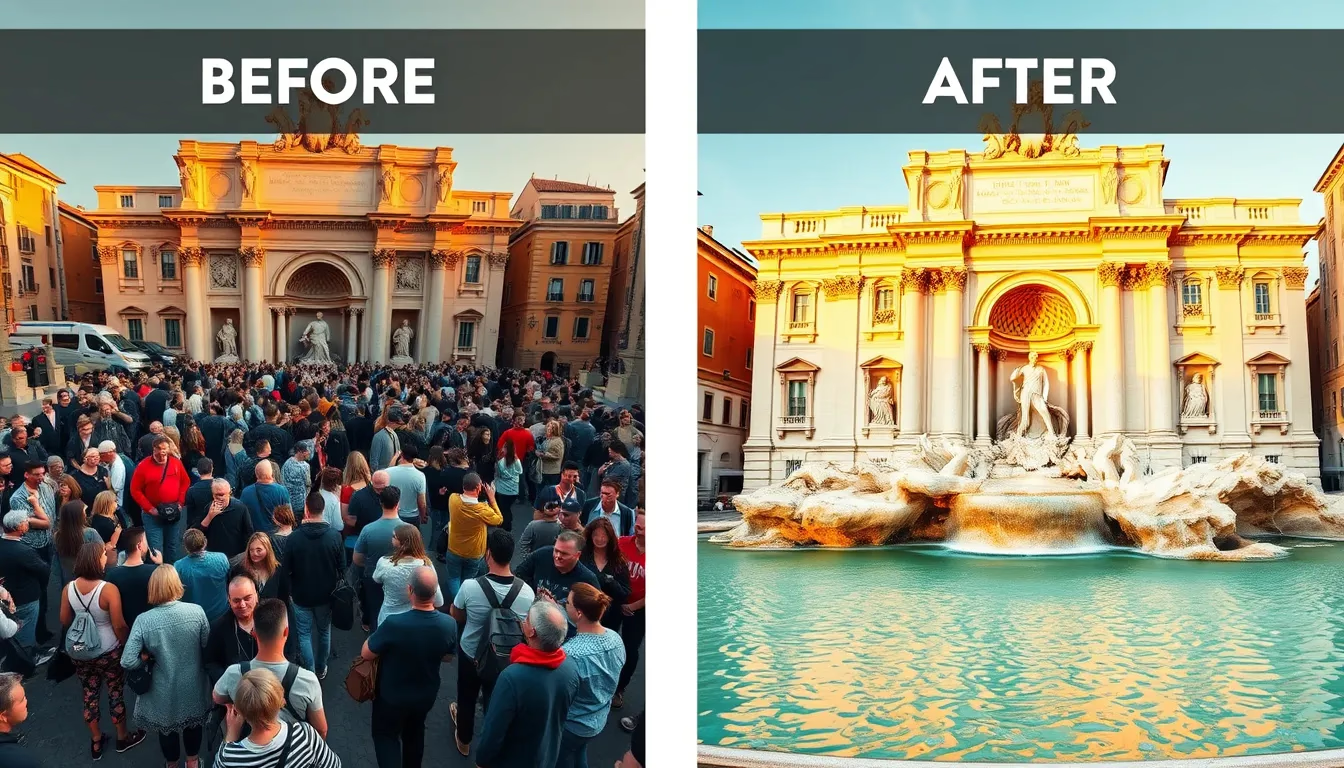
If you've ever tried to remove strangers from travel photos, you've seen how capable these tools have become. The same underlying technology powers background removal for sticker creation.
Dealing with Problem Areas
Even good AI tools occasionally struggle with certain elements: wispy hair against busy backgrounds, transparent objects like glasses, or subjects wearing clothing that matches the background color. For stickers, perfection isn't always necessary—a slightly rough edge often goes unnoticed at small display sizes.
If particular photos give you trouble, consider whether a tighter crop might help. Removing problematic edge areas sometimes produces a cleaner result than fighting with complex selections.
Step-by-Step: Creating Your Sticker Pack
Once you understand the basics, the actual workflow is surprisingly straightforward. Here's how to go from regular photos to a working WhatsApp sticker pack.
Step 1: Select Your Photos
Start by gathering 10-20 candidate images. You'll likely discard some that don't work well, so having extras gives you flexibility. Look for:
- Clear facial expressions (happy, sad, surprised, annoyed, confused)
- Funny moments or inside jokes
- Pet photos with personality
- Reaction-worthy poses
Variety matters. A sticker pack where every image shows the same expression gets boring quickly. Aim for a range of emotions and situations you'd actually use in conversations.
Step 2: Remove Backgrounds
Process each photo to isolate the subject. Whether you use desktop software, mobile apps, or browser-based tools, the goal is the same: export images with transparent backgrounds (PNG format preserves transparency; JPEG does not).
For efficiency, batch processing saves considerable time if your chosen tool supports it. Upload multiple images, let the AI work, then download the results. Photomize AI handles this kind of bulk editing, which helps when you're creating an entire sticker pack rather than one or two images.
Step 3: Resize and Format
WhatsApp requires stickers to be exactly 512×512 pixels. Most background removal tools don't automatically resize, so you'll need an additional step.
Free image editors like Photopea (browser-based) or GIMP can resize images easily. When resizing, maintain aspect ratio to avoid distortion—this might mean your subject doesn't fill the entire square, which is fine. A smaller subject with proper proportions looks better than a stretched, distorted one.
Step 4: Add Optional Enhancements
Pure photo stickers work great, but you can enhance them with:
- White outlines: A thin border helps stickers stand out against any chat background color. Many sticker maker apps add this automatically.
- Text overlays: Short captions like "LOL" or "Why though?" can add context, though they're not necessary.
- Slight color boosts: Increasing saturation slightly can help stickers pop at small sizes.
Don't overdo the editing. Stickers should still look like photos, not heavily processed graphics. If you're interested in creating more polished visuals, the principles covered in AI social media content creation apply here too—clarity and immediate recognition matter more than complexity.
Step 5: Bundle Into a Sticker Pack
WhatsApp doesn't let you upload stickers directly from your camera roll. You need to use a sticker maker app to create a proper sticker pack that WhatsApp recognizes.
Popular options include:
- Sticker Maker (iOS and Android)
- Sticker.ly
- Sticker Studio
These apps are generally free with optional premium features. The basic workflow: create a new pack, import your transparent PNGs, arrange them in the order you prefer, and publish to WhatsApp. The app handles the technical formatting requirements.
WhatsApp requires a minimum of three stickers per pack, with a maximum of 30. You'll also need to designate one image as the pack's icon—usually a smaller version of your most recognizable sticker.
Sticker Ideas That Actually Get Used
Having the technical process down is one thing. Creating stickers people actually reach for in conversations is another. Here are concepts that tend to see heavy rotation:
The Reaction Set
Build a collection covering basic conversational responses:
- Laughing/LOL
- Shocked or surprised
- Eye roll or skepticism
- Thinking or confused
- Approval (nodding, thumbs up)
- Disapproval (shaking head, facepalm)
These become your everyday vocabulary, replacing generic emoji with personalized versions.
The Inside Joke Collection
Every friend group has moments that became legendary. The time someone fell asleep in a ridiculous position. The face your friend makes when someone suggests their least favorite restaurant. That one photo everyone references constantly.
These stickers may be meaningless to outsiders, but they're gold within your circle.
The Pet Pack
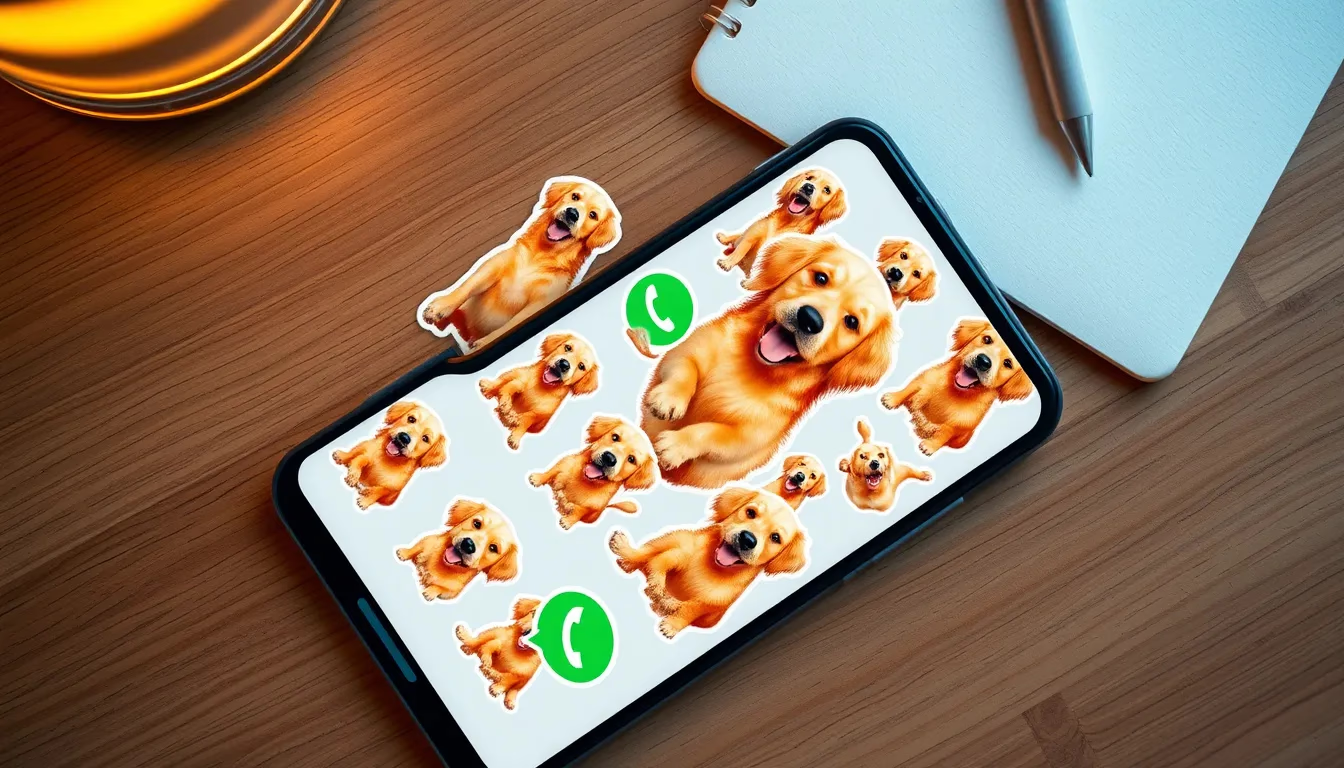
Pet stickers are universally popular, even with people who don't know your animal. Dogs and cats naturally produce expressive photos—yawning, looking guilty, tilting their heads in confusion. A well-curated pet sticker pack often gets shared beyond your immediate contacts.
The Seasonal Rotation
Consider creating themed packs for specific occasions: holiday reactions, birthday wishes, vacation responses. These can supplement your core pack with timely options.
Troubleshooting Common Problems
Stickers Look Blurry
This usually means your source images were too low resolution, or they were compressed somewhere in the process. Start with the highest quality originals you have, and avoid screenshots of photos (which reduce quality).
White Edges Around Subjects
Known as "fringing," this happens when background removal leaves traces of the original background around edges. Some sticker maker apps have defringing options. Alternatively, adding a stroke or outline covers minor edge imperfections.
WhatsApp Won't Add the Pack
Make sure you have at least three stickers, all sized to 512×512, all in PNG format with transparency. WhatsApp is strict about these requirements—if anything is off, the pack won't import.
Colors Look Different in WhatsApp
WhatsApp's dark mode and light mode can affect how sticker colors appear. Test your pack in both modes if possible. Very dark or very light stickers may disappear against certain backgrounds, which is another reason outlines help.
Beyond Basic Photo Stickers
Once you've mastered straightforward photo stickers, you might explore more creative approaches:
Composite stickers combine elements from multiple photos—maybe your face on a famous meme template, or your pet photoshopped into unexpected situations. Merging photos with AI opens up possibilities that would have required advanced Photoshop skills in the past.
Illustrated overlays add drawn elements to photo bases—cartoon tears, steam coming from ears, heart eyes. These hybrid stickers bridge the gap between photo realism and cartoon expressiveness.
Animated stickers are technically possible on WhatsApp, though they require more complex creation tools. Start with static stickers before tackling animation.
Practical Considerations
Storage and Organization
WhatsApp limits how many sticker packs you can have active simultaneously (typically around 20). If you create many packs, you may need to remove older ones to add new collections.
Keep your original transparent PNGs backed up somewhere. If you need to rebuild a pack or create variations, having source files saves recreating everything from scratch.
Sharing Your Creations
Sticker packs can be shared with others directly through WhatsApp—recipients can add your pack to their own collection with a tap. This makes distributing group-specific packs easy. For broader distribution, some sticker maker apps have community features where public packs can be discovered and downloaded.
Privacy Thoughts
Remember that stickers featuring real people will be visible to whoever receives them. Make sure anyone recognizable in your stickers is comfortable with that usage, especially for packs you plan to share widely.
Making Stickers That Actually Last
The sticker packs that see long-term use share a few qualities: they're genuinely useful for everyday conversations, they capture something specific and personal, and they're technically clean enough to look good at small sizes.
Spend a little extra time on photo selection and background removal quality. A tight pack of 15 excellent stickers outperforms a bloated collection of 30 mediocre ones. You'll reach for the good ones constantly while the filler images gather digital dust.
Custom WhatsApp stickers transform routine messaging into something more personal and expressive. Your reactions, your inside jokes, your pets—all instantly accessible whenever the conversation calls for them. That's worth an hour of setup.